Discord Text Formatting: The Complete Guide to Markdown, Colors, and Fancy Fonts
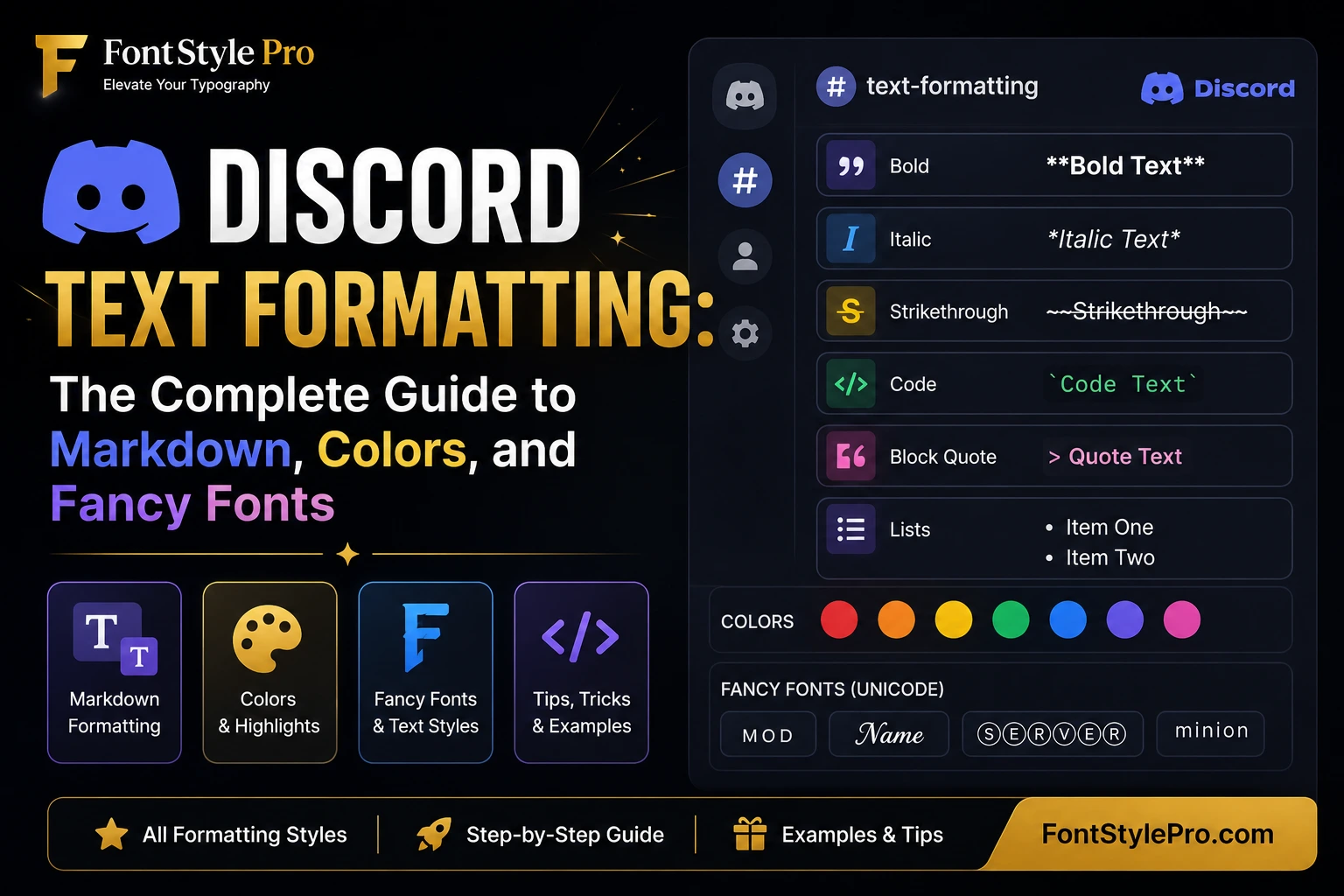
Discord text formatting uses a system called Markdown, which lets you bold, italicize, underline, strike through, and color your messages using simple symbols typed around your text. No menus, no buttons, just a few characters and you’re done.
Wrap your text in **asterisks** for bold, *single asterisks* or _underscores_ for italic, __double underscores__ for underline, and ~~tildes~~ for strikethrough. For color, you use code blocks with specific language tags or ANSI escape codes. For stylish fonts Discord doesn’t natively support, copy-paste Unicode text from a generator.
This guide covers all three layers: standard Markdown every Discord user should know, color formatting hacks (syntax highlighting and ANSI), and the Unicode font trick that most guides never mention.
Table of Contents
Discord Markdown Cheat Sheet (Quick Reference)
Before anything else, here’s the full reference table. Bookmark it.
| Format | Syntax | Mobile? | Notes |
| Bold | **text** | Yes | Two asterisks each side |
| Italic | *text* or _text_ | Yes | One asterisk or underscore |
| Underline | __text__ | Yes | Two underscores each side |
| Strikethrough | ~~text~~ | Yes | Two tildes each side |
| Bold Italic | ***text*** | Yes | Three asterisks |
| Underline Bold | __**text**__ | Yes | Combine both |
| Underline Italic | __*text*__ | Yes | Combine both |
| Inline Code | `text` | Yes | Single backtick |
| Code Block | “`text“` | Yes | Triple backticks |
| Syntax Highlight | “`diff + text | Partial | See color section |
| ANSI Color | “`ansi + escape codes | No | Desktop only |
| Block Quote | > text | Yes | One line |
| Multi-line Quote | >>> text | Yes | Everything after |
| Spoiler | ||text|| | Yes | Double pipes |
| Header 1 | # text | Yes | Large heading |
| Header 2 | ## text | Yes | Medium heading |
| Header 3 | ### text | Yes | Small heading |
| Subtext | -# text | Yes | Small gray text below |
| Bullet List | – text or * text | Yes | At line start |
| Numbered List | 1. text | Yes | Manual numbering |
| Masked Link | [label](url) | Yes | Hides URL behind text |
| Escape | \*text\* | Yes | Backslash cancels formatting |
| Timestamp | <t:UNIX:F> | Yes | Shows local time for reader |
Basic Discord Text Formatting
How to Bold Text in Discord
Type two asterisks on each side of your text: **like this**. When you send the message, Discord renders it as bold text.
Keyboard shortcut on desktop: highlight your text, then press Ctrl + B (Windows) or Cmd + B (Mac). Discord wraps the selection automatically.
On mobile, type the asterisks manually or long-press selected text to get formatting options in the context menu.
Example:
**Server rules updated — please read.**
How to Italicize Text in Discord
Use one asterisk or one underscore on each side: *text* or _text_.
Both do the same thing. Most people use the asterisk version because the underscore can sometimes conflict with usernames that have underscores in them.
Desktop shortcut: Ctrl + I or Cmd + I.
Example:
*This event is invite-only.*
How to Underline Text in Discord
Two underscores on each side: __text__. Note: this is two underscores, not one. One underscore makes italic. Two make underline.
Desktop shortcut: Ctrl + U or Cmd + U.
__Read this before posting.__
How to Strikethrough Text in Discord
Wrap your text in two tildes on each side: ~~text~~.
The tilde key (~) is in the top-left of most keyboards, next to the 1 key, accessed with Shift + backtick. If your strikethrough isn’t rendering, the most common cause is using only one tilde instead of two.
~~Meeting canceled~~ Rescheduled to Friday.
Combining Formats
You can stack formatting symbols to combine effects.
| Combination | Syntax |
| Bold + Italic | ***text*** |
| Bold + Underline | __**text**__ |
| Italic + Underline | __*text*__ |
| Bold + Italic + Underline | __***text***__ |
| Strikethrough + Bold | ~~**text**~~ |
Keep in mind that the more you combine, the harder the message is to read. Use combinations sparingly, mostly for emphasis on a single critical phrase.
Discord Headers and Subtext (Newer Features)
Discord added headers and subtext in 2024. Most older guides don’t cover them.
Headers
Use #, ##, or ### at the start of a line followed by a space:
# Big Announcement
## Section Title
### Sub-section
These render as large, medium, and small headings. They’re useful for rules channels, pinned posts, or any long message that needs structure.
Headers don’t work mid-sentence. They only trigger at the beginning of a line.
Subtext (Discord’s -# Feature)
Start a line with -# followed by a space to create small, gray subtext beneath your message:
Join our gaming tournament this Saturday!
-# Open to all members. No registration required.
This is useful for footnotes, disclaimers, or attribution. It’s a 2024 addition, which is why you won’t find it in most guides.
Code Blocks in Discord
Inline Code
Wrap text in single backticks for inline code formatting: `text`
This displays text in a monospaced font with a gray background. Useful for commands, file names, or any text you want to stand out without full formatting.
Type `/ban` to ban a user.
Multi-line Code Blocks
Triple backticks on each side create a full code block:
“`
Paste any content here.
Formatting is preserved exactly.
No Markdown inside code blocks.
“`
Note: Markdown formatting doesn’t work inside code blocks. This is actually useful if you want to write something like **this** literally without it bolding.
How to Get Colored Text in Discord
Discord doesn’t have a native color picker. There’s no button for it. But there are two methods that actually work: syntax highlighting hacks and ANSI escape codes.
Method 1: Syntax Highlighting Color Hacks
Discord uses a library called Highlight.js to color code inside code blocks based on programming language syntax. You can exploit this to get colored text in chat, even if you’re not writing code.
Start a code block with a language tag:
“`diff
+ This text appears green
– This text appears red
“`
“`fix
This text appears yellow/gold
“`
“`css
[This text appears yellow]
“`
“`yaml
key: This text appears yellow
“This text appears white/bright”
“`
“`bash
# This comment text appears orange/yellow
“`
Caveats you need to know:
- These colors depend on the viewer’s Discord theme. Dark mode vs light mode changes how they render.
- Not all syntax highlighting colors look the same on every client.
- They work on mobile, unlike ANSI codes.
- You can’t choose an arbitrary color — you’re limited to whatever Highlight.js assigns based on syntax role.
Method 2: ANSI Color Codes (Full Color Control)
ANSI color codes give you real control. You use an ansi code block with escape sequences to set foreground and background colors.
This only works on Discord desktop. ANSI does not render on the Discord mobile app.
How to Write ANSI Color in Discord
- Start an ansi code block: “`ansi
- Type the escape sequence: \u001b[ followed by a color code and m
- Write your text
- Close with “`
The escape character (\u001b or ESC, ASCII 27) can be typed by pressing Ctrl + Shift + U, then 1b, then Enter on Linux, or copied from a generator tool.
ANSI Foreground Color Codes
| Color | Code |
| Default | \u001b[0m |
| Gray | \u001b[30m |
| Red | \u001b[31m |
| Green | \u001b[32m |
| Yellow | \u001b[33m |
| Blue | \u001b[34m |
| Magenta | \u001b[35m |
| Cyan | \u001b[36m |
| White | \u001b[37m |
| Bright Red | \u001b[91m |
| Bright Green | \u001b[92m |
| Bright Yellow | \u001b[93m |
| Bright Blue | \u001b[94m |
| Bright Magenta | \u001b[95m |
| Bright Cyan | \u001b[96m |
| Bright White | \u001b[97m |
ANSI Background Color Codes
| Color | Code |
| Dark Blue (BG) | \u001b[40m |
| Orange (BG) | \u001b[41m |
| Marble Blue (BG) | \u001b[42m |
| Gray-Turquoise (BG) | \u001b[43m |
| Gray (BG) | \u001b[44m |
| Indigo (BG) | \u001b[45m |
| Light Gray (BG) | \u001b[46m |
| White (BG) | \u001b[47m |
ANSI Text Style Codes
| Style | Code |
| Bold | \u001b[1m |
| Underline | \u001b[4m |
| Reset all | \u001b[0m |
If you want even more unusual text effects, such as glitched or distorted characters, try a cursed text generator. These Unicode-based styles can make Discord bios, nicknames, and status messages stand out.
Example: Multi-color ANSI Message
“`ansi
\u001b[32mServer is online\u001b[0m — \u001b[31mMaintenance at 3PM UTC\u001b[0m
“`
This renders “Server is online” in green and “Maintenance at 3PM UTC” in red, then resets to default.
Tip: Typing raw ANSI escape sequences manually is tedious. Use a Discord colored text generator to build your ANSI block and copy it directly into Discord.
Discord Font: What You Can and Can’t Change
Discord’s default font is Uni Sans. You can’t change it from inside Discord, there’s no font picker, no settings option, nothing. The font is the same for everyone.
What you can do is use Unicode characters that look like different fonts. Unicode is a universal text standard, and it includes thousands of character sets that visually resemble bold, italic, cursive, monospace, and other font styles.
These Unicode characters paste into Discord like normal text. Discord renders them as-is because they’re not formatting — they’re different characters entirely.
Examples of Unicode text in Discord:
| Style | Example |
| Bold serif | 𝐓𝐡𝐢𝐬 𝐥𝐨𝐨𝐤𝐬 𝐛𝐨𝐥𝐝 |
| Italic serif | 𝑇ℎ𝑖𝑠 𝑙𝑜𝑜𝑘𝑠 𝑖𝑡𝑎𝑙𝑖𝑐 |
| Script/cursive | 𝒯𝒽𝒾𝓈 𝓁𝑜𝑜𝓀𝓈 𝒸𝓊𝓇𝓈𝒾𝓋𝑒 |
| Small caps | ᴛʜɪs ʟᴏᴏᴋs sᴍᴀʟʟ ᴄᴀᴘs |
| Monospace | 𝚃𝚑𝚒𝚜 𝚕𝚘𝚘𝚔𝚜 𝚖𝚘𝚗𝚘 |
| Strikethrough | T̶h̶i̶s̶ ̶l̶o̶o̶k̶s̶ ̶s̶t̶r̶u̶c̶k̶ |
To generate these, use a Discord font generator tool or a font style generator. You type your text, pick a style, and copy the Unicode result directly into your Discord message.
This is also how people get fancy text in their Discord bio, username display, or server descriptions.
Important: Unicode stylish text is readable by most people but may display as boxes or question marks for users on very old devices or some accessibility tools. Use it for creative expression, not critical information.
More Discord Formatting Features
Block Quotes
Use > at the start of a line for a single-line block quote:
> Someone said this earlier
Use >>> for a multi-line block quote that captures everything that follows:
>>> Line one
Line two
Line three
Block quotes are useful in busy servers when you’re replying to an earlier message and want to provide context without pinging someone.
Spoiler Tags
Wrap text in double pipes to hide it behind a spoiler blur: ||text||
||The villain was his father all along.||
Readers click or tap to reveal it. This also works for images, attach an image and mark it as a spoiler using the eye icon before sending.
Masked Links
Create clickable text that hides a long URL:
[Join the server](https://discord.gg/yourlink)
This renders as a hyperlink with your chosen label. Useful in announcements, rules channels, or any message where a raw URL would be ugly or confusing.
Note: This only works in channels where link embeds are enabled. Some server settings restrict this.
Discord Lists
Bullet lists use – or * at the start of each line:
– Item one
– Item two
– Item three
For numbered lists, type the numbers manually:
1. First step
2. Second step
3. Third step
Discord doesn’t auto-number. If you delete item 2, the remaining items don’t renumber.
Discord Timestamps
Discord timestamps automatically convert to each reader’s local time zone. This is one of the most underused formatting features on the platform.
The syntax: <t:UNIX:F>
Replace UNIX with a Unix timestamp (seconds since January 1, 1970). Use any free Unix timestamp converter to get the number.
Format flags:
- t — Short time (e.g., 9:00 AM)
- T — Long time (e.g., 9:00:00 AM)
- d — Short date (e.g., 01/23/2026)
- D — Long date (e.g., January 23, 2026)
- f — Date and time (January 23, 2026 9:00 AM)
- F — Full date with day (Friday, January 23, 2026 9:00 AM)
- R — Relative (e.g., “in 3 hours” or “2 days ago”)
Example:
Event starts: <t:1753228800:F>
Countdown: <t:1753228800:R>
Every server member sees this in their own time zone without any conversion. It’s perfect for announcing events across international communities.
Escape Characters
If you want to type **this** literally without Discord turning it bold, put a backslash before each symbol:
\*\*this\*\*
That sends the asterisks as plain text. This works for all Markdown symbols: *, _, ~, |, #, >, and backticks.
@Mentions and Channel Links
These aren’t traditional Markdown, but they’re part of Discord’s formatting system:
- @username mentions a specific user
- @everyone pings all members (requires permission)
- @here pings all online members (requires permission)
- #channel-name creates a clickable link to that channel
- @RoleName mentions a role
Discord Formatting on Mobile vs Desktop
This is the section most guides skip entirely. Some formatting works differently or not at all on mobile.
| Feature | Desktop | Mobile |
| Bold, Italic, Underline, Strikethrough | Yes | Yes |
| Code blocks | Yes | Yes |
| Syntax highlighting color hacks | Yes | Partial (colors may differ) |
| ANSI color codes | Yes | No |
| Headers | Yes | Yes |
| Subtext (-#) | Yes | Yes |
| Spoilers | Yes | Yes |
| Masked links | Yes | Yes |
| Timestamps | Yes | Yes |
| Unicode fancy text | Yes | Yes |
Mobile formatting tips:
On iOS and Android, you can long-press to select text in the message box, then tap the formatting option (B, I, U, S) that appears in the context toolbar. This inserts the Markdown symbols automatically.
For inline code on mobile, there’s usually no quick toolbar shortcut. Type the backtick manually using your keyboard’s symbols panel.
ANSI color blocks you create on desktop will appear in chat for mobile users, but mobile users cannot easily create them. If you want colored text that’s accessible to mobile users, use the syntax highlighting hacks in Method 1 above instead.
Practical Use Cases for Discord Formatting
Most guides just explain the syntax. Here’s when to actually use each feature.
Rules channels: Use # headers to organize sections (General Rules, Voice Chat Rules, Posting Guidelines). Use **bold** for the rule name and regular text for the explanation. Block quotes can separate examples from the rule itself.
Announcement channels: Bold the key detail (date, time, or action required). Use a timestamp for events so no one has to convert time zones. Masked links clean up long URLs.
Support channels: Use code blocks when sharing commands or error messages. It preserves spacing and makes text selectable, which helps when users need to copy exact syntax.
Game night coordination: Timestamps with the R flag (“starts in 2 hours”) are great for countdowns. Spoiler tags hide puzzle answers or plot details.
Pinned messages: Subtext is useful for “last updated” notes. Headers help members skim a long pinned post.
Troubleshooting Discord Formatting
My bold / italic / strikethrough isn’t working
Check that you have no spaces between the symbols and the text. ** bold ** won’t render, but **bold** will. Also check you’re using the right number of symbols: two asterisks for bold, one for italic, two tildes for strikethrough, two underscores for underline.
My strikethrough shows ~ instead of formatting
You’re probably using one tilde. Strikethrough requires two on each side: ~~text~~, not ~text~.
I see a backslash in my message
You typed a backslash before a Markdown symbol by accident, which escaped it. Delete the backslash and resend.
ANSI colors aren’t working
ANSI only works on Discord’s desktop app. If you or the person you’re sending to is on mobile, ANSI will not render.
My formatting is working in some servers but not others
Some servers enable “plain text mode” for specific channels, which disables Markdown rendering entirely. Server admins set this. You can’t override it as a regular member.
Headers aren’t showing on mobile
Headers do render on the latest versions of the Discord mobile app. If they’re not showing, your app may be out of date.
I want to send a literal asterisk without triggering bold
Use the backslash escape: \* sends a plain asterisk without triggering italic or bold.
FAQ
How do you bold text in Discord?
Type two asterisks on each side of your text: **your text**. On the desktop, you can also highlight text and press Ctrl + B (Windows) or Cmd + B (Mac). The bold formatting works in all Discord channels, DMs, and threads on both desktop and mobile.
How do you get colored text in Discord?
Discord has no native color picker. The two methods that work are syntax highlighting code blocks (using language tags like diff, fix, or css) and ANSI escape codes inside an ansi code block. Syntax highlighting works on mobile. ANSI colors only work on Discord desktop. Neither lets you choose an arbitrary hex color.
Can you change the font in Discord?
You cannot change Discord’s built-in font, which is Uni Sans. However, you can use Unicode characters that visually resemble different font styles. Copy Unicode text from a Discord font generator and paste it directly into your message. It works in chat, bios, and server descriptions.
If you’re new to custom typography and want to learn how fonts work on your computer, see this guide on how to install fonts on windows.
What is Discord subtext?
Subtext is a Discord formatting feature added in 2024 that displays text in a smaller, gray style beneath your main message. Use it by starting a line with -# followed by a space and your text. It’s useful for footnotes, credits, or secondary information.
Does Discord markdown work on mobile?
Most Discord Markdown works on mobile, including bold, italic, underline, strikethrough, spoilers, code blocks, headers, and subtext. The main exception is ANSI color codes, which only render on the desktop app. Some syntax highlighting colors also appear differently on mobile depending on the client version.
Why isn’t my Discord formatting working?
The most common causes are: spaces between the Markdown symbols and your text, using the wrong number of symbols (one tilde instead of two for strikethrough), having the channel set to plain text mode by the server admin, or using formatting inside an existing code block where Markdown is disabled.
How do you make a spoiler in Discord?
Wrap your text in double pipe characters: ||your spoiler here||. Readers see a blurred block and must click or tap to reveal the text. For image spoilers, attach the image, click the eye icon that appears in the attachment preview, and mark it as a spoiler before sending.
What does -# do in Discord?
The -# syntax creates subtext in Discord, which is small, gray-colored text that appears below your normal message. It was introduced in 2024 and is commonly used for disclaimers, footnotes, or source attribution in longer messages.
How do Discord timestamps work?
Discord timestamps use the format <t:UNIX:F> where UNIX is a Unix epoch timestamp (seconds since Jan 1, 1970) and the letter is a display flag. Every user sees the timestamp in their own local time zone automatically. Use the R flag for relative times like “in 3 hours.” Convert your desired date and time to Unix format using any free timestamp tool.
How do you stop Discord from formatting your text?
To prevent Discord from interpreting Markdown symbols, place a backslash (\) before each symbol. For example, \*\*text\*\* sends **text** literally instead of rendering it bold. You can also paste text into an inline code block to preserve it exactly as typed.